NI Labview Legacy Connector
The Labview driver was developed to communicate with Labview software from National Instruments, specially with TLS security.
Nodes
Station Configuration
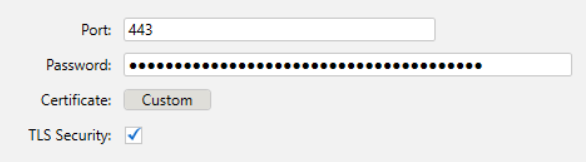
Where :
<Port> = Port to be opened for others to connect.
<Password> = Server certificate password
<Certificate> = Server certificate path
<TLS Security> = TLS security is enable or not?
E.g.: 443;#D9F7EF8FFF9EFF8CFF8CFF88FF90FF8DFF9BFF;Custom;C:\Program Files\OpenSSL-Win64\bin\server.pfx;True
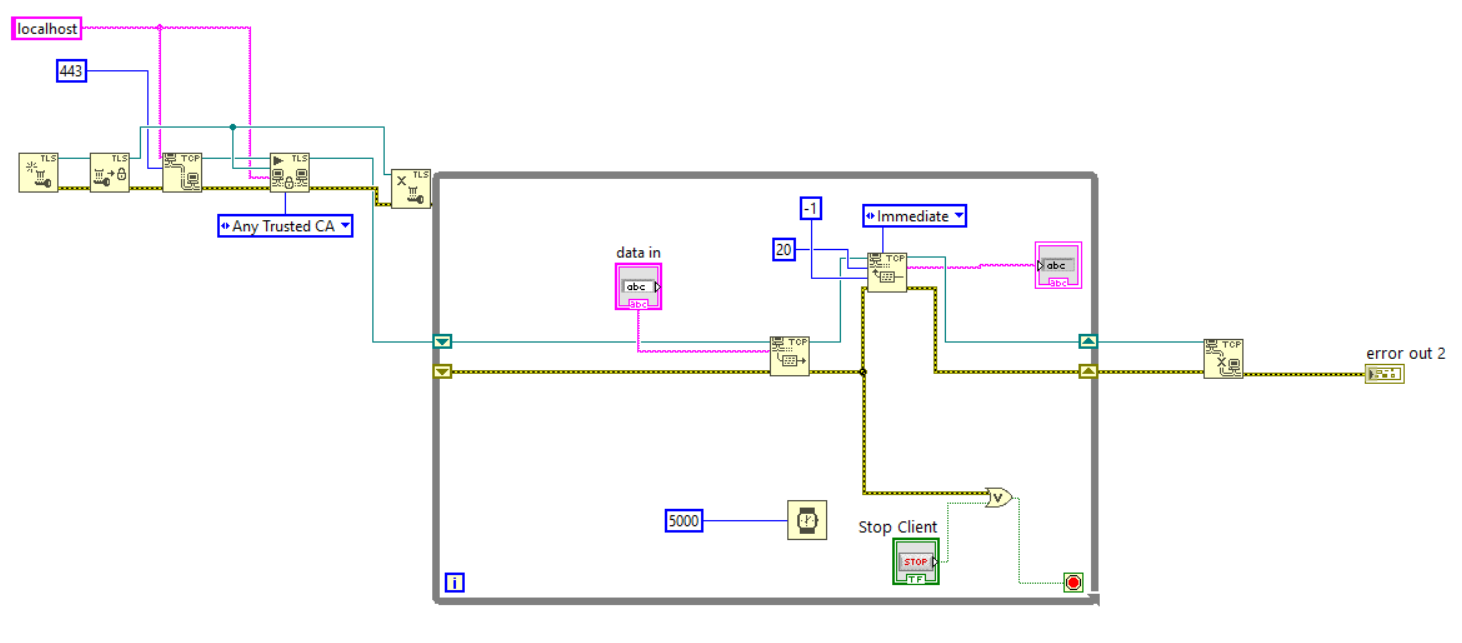
Adittional information about the certificate
We did this driver in a way that Proview DS is the Certificate Server, so you must be able to access the certificate from the Server computer. In Devices > Nodes > PrimaryStation > Custom button you will select the certificate path, these were the steps we used to generate a authentic TLS certificate:
1 - Execute cmd as administrator and do a cd to C:\Program Files\OpenSSL-Win64\bin
2 - Generate a private RSA key:
bashCopy code
openssl genpkey -algorithm RSA -out server.key -pkeyopt rsa_keygen_bits:2048
3 - Generate a autosign certificate
bashCopy code
openssl req -new -x509 -key server.key -out server.crt -days 365 -subj "/CN=localhost"
4 - Create PFX file
bashCopy code
openssl pkcs12 -export -out server.pfx -inkey server.key -in server.crt -passout pass:yourpassword
5 - Install the Certificate on the Operating System
Windows: To add the certificate to the trusted certificate store on Windows:
Open the "Certificate Manager" (certmgr.msc).
Navigate to "Trusted Root Certification Authorities" > "Certificates".
Right-click and select "Import".
Follow the import wizard to add the certificate.
With this setting in topic 5, you can use the following configuration. Without this configuration, only "None" works.